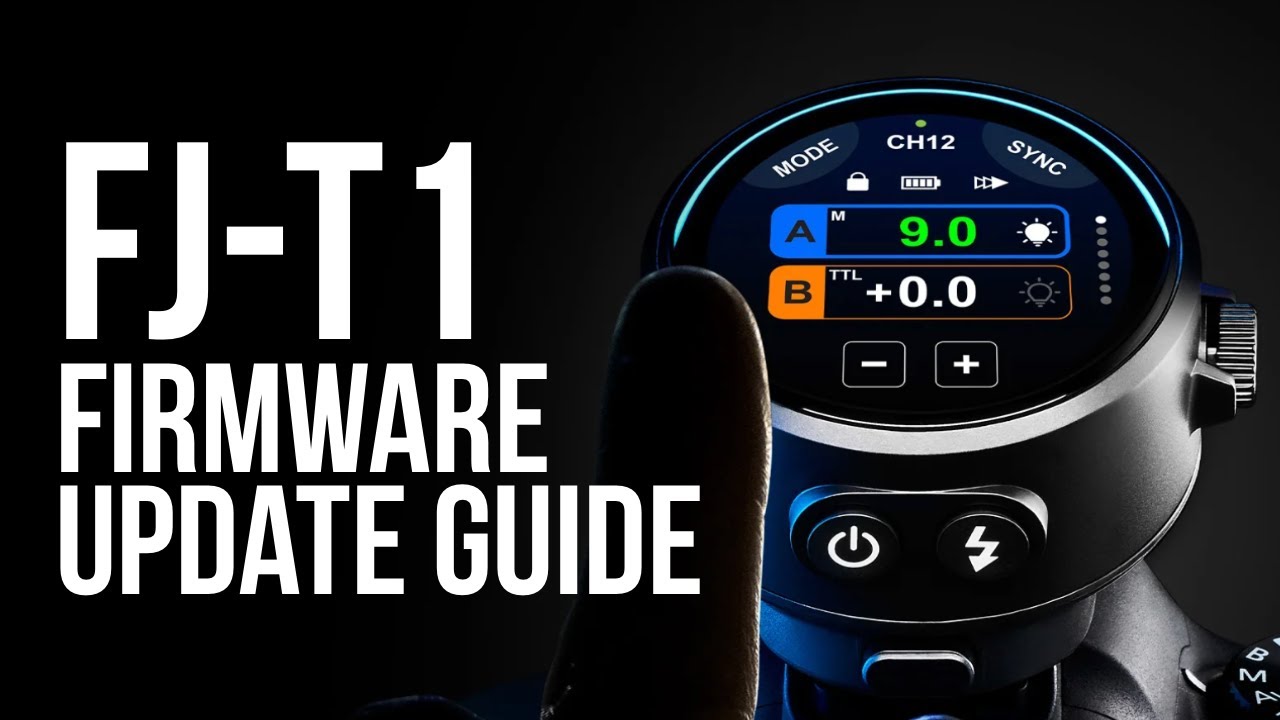
I’ve been working with wireless triggers in my studio for over a decade, and I can tell you with certainty: keeping your gear updated isn’t optional. It’s essential. Whether you’re shooting high-speed sync in natural light or managing multiple strobes in a controlled environment, your trigger’s firmware determines how reliably your lights fire. In this excellent tutorial, Joel Grimes shows us exactly how to update the FJ-T1 trigger—and I’m breaking it down into actionable steps you can follow right now.
Why Firmware Updates Matter for Your Workflow
Before we dive into the mechanics, let me be direct: firmware updates aren’t just about new features. They’re about stability, bug fixes, and compatibility. I’ve seen photographers lose shots because they were running outdated firmware when a new camera body hit the market. The FJ-T1 is a workhorse trigger, and keeping it current ensures it performs like one.
What You’ll Need Before Starting
Gather these items before beginning:
- Your FJ-T1 trigger
- A computer (Mac or PC)
- The included USB-C cable
- About 10 minutes of uninterrupted time
- Internet connection to download the firmware file
I always update my triggers when I’m not in the middle of a shoot. Pick a time when you’re not under deadline pressure—this isn’t a task to rush through.
Step 1: Put Your Trigger in Device Mode
Here’s where most people get confused, and Joel makes this crystal clear in his tutorial. You’re going to connect your FJ-T1 to your computer, but you need to do it while holding the TestFire button.
The process:
- Have your USB-C cable ready
- Press and hold the TestFire button on your trigger
- While holding it, plug the USB-C cable into the trigger’s port
- Keep holding until your computer recognizes the device
This puts the trigger into a special mode where it appears as an external drive on your computer. This is crucial—without this step, your computer won’t see it as a storage device, and you can’t copy the firmware file over.
I think of it like putting the trigger into a “listening” mode. It’s waiting for instructions from your computer.
Step 2: Download the Latest Firmware
Navigate to fjwestcott.com/firmware in your web browser. This is the official Westcott source—don’t download firmware from third-party sites or forums. Manufacturer sites are always your safest bet.
When you download, you’ll get a ZIP file. The file name will reflect the version number (something like “FJT1_v2.1.0.zip”). Save it somewhere you can easily find it—your Downloads folder is fine.
Step 3: Extract and Examine the Contents
Once the download completes, unzip that file. You’ll find two items inside:
The Changelog – This is the document you should always read. It tells you exactly what’s changed in this firmware version. New features? Bug fixes? Compatibility improvements? It’s all here. I treat this like a recipe’s ingredient list—you need to know what you’re working with before you proceed.
The BIN file – This is the actual firmware. The filename will be something like “FJT1.bin”. This is what transfers to your trigger.
Step 4: Copy the Firmware to Your Trigger
This step is straightforward but methodical. Drag the BIN file onto your trigger’s drive (which appears on your computer just like a USB drive would).
Watch the progress bar. Wait until the file has completely copied. Don’t unplug during this process. I’ve seen photographers get impatient here, and it’s never worth it. Give it the full transfer time.
Step 5: Safely Eject the Device
Once the copy is complete, eject the trigger’s drive from your computer. On Mac, drag it to the trash (which becomes “Eject” when you hover over it). On Windows, right-click and select “Eject.”
This is non-negotiable. If you skip this step and just unplug, you risk corrupting the firmware file.
Step 6: Initiate the Update
Now comes the moment of truth. Unplug the USB-C cable from both your computer and your FJ-T1.
Press and hold the power button on the trigger for several seconds until the update initiates. You’ll see the trigger enter update mode—the display will show you it’s working.
Don’t touch it. Don’t unplug it. Let the process complete. This usually takes under a minute, but patience here is non-negotiable.
Once it finishes, your trigger will restart with the new firmware installed.
Pro Tips from Years in the Studio
Keep records. Note which firmware version you’re running. I have a simple spreadsheet with my gear’s firmware versions. When I encounter an issue, the first question I ask is: “What version am I running?”
Update all your triggers. If you have multiple FJ-T1 triggers, update them all at the same time. Mismatched firmware versions across your triggers can create unpredictable behavior.
Read the changelog. Every single time. I’ve caught compatibility notes in changelogs that prevented problems before they started.
Watch the Full Tutorial
For Joel’s complete walkthrough with visual demonstrations, watch the video above. Seeing the process in real-time removes any guesswork.
Keep your FJ-T1 updated, and you’ll keep your studio running smoothly. That’s the foundation of reliable gear management.