There is a particular kind of frustration that comes from building your own tools and hitting a wall on something that should be simple. I designed a basic lighting diagram app for my own use a few years back, nothing fancy, just something to log setups from shoots so I could replicate them later without squinting at a napkin sketch. The moment I needed buttons to actually do something when clicked, I found myself drowning in boilerplate code I didn’t fully understand. Events. Handlers. Delegates. The terminology made it feel more complicated than it needed to be.
That’s why I keep coming back to this kind of foundational tutorial. In this Tony and Chelsea Northrup tutorial on generating events in C# and Visual Basic.NET using Visual Studio 2010, the core mechanic is laid out with zero fluff. Watch the full tutorial on YouTube before or after you read through this breakdown. Either way, what follows is a step-by-step reconstruction of the technique, written so you can work through it without the video running in the background.
The principle here is the same one I use when I’m building a lighting setup: start with the most reliable path to a predictable result, then customize once you understand the system. Visual Studio’s event generation tools are exactly that. They give you the structure. You supply the intention.
Step 1: Open Your Project and Locate a Graphical Control
 Visual Studio interface showing a graphical control selected in the designer
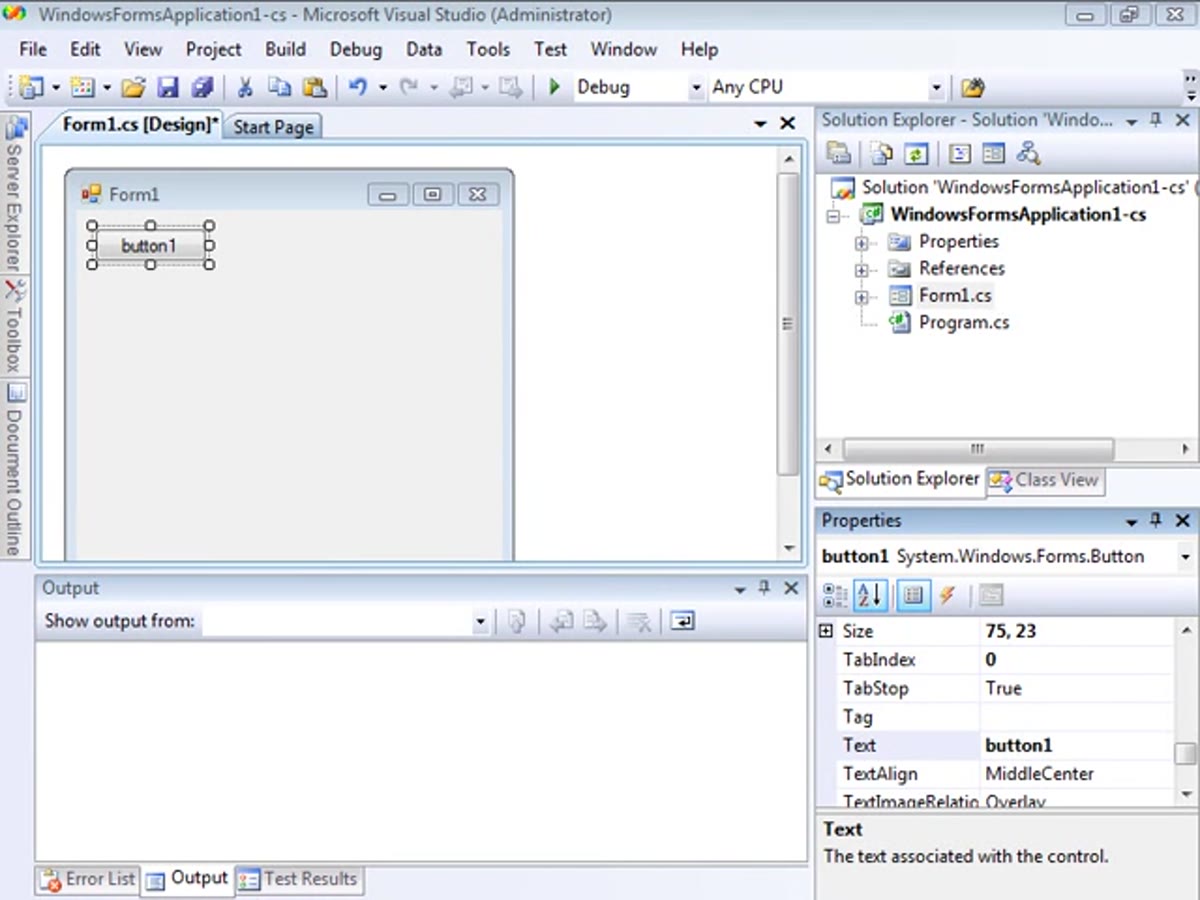
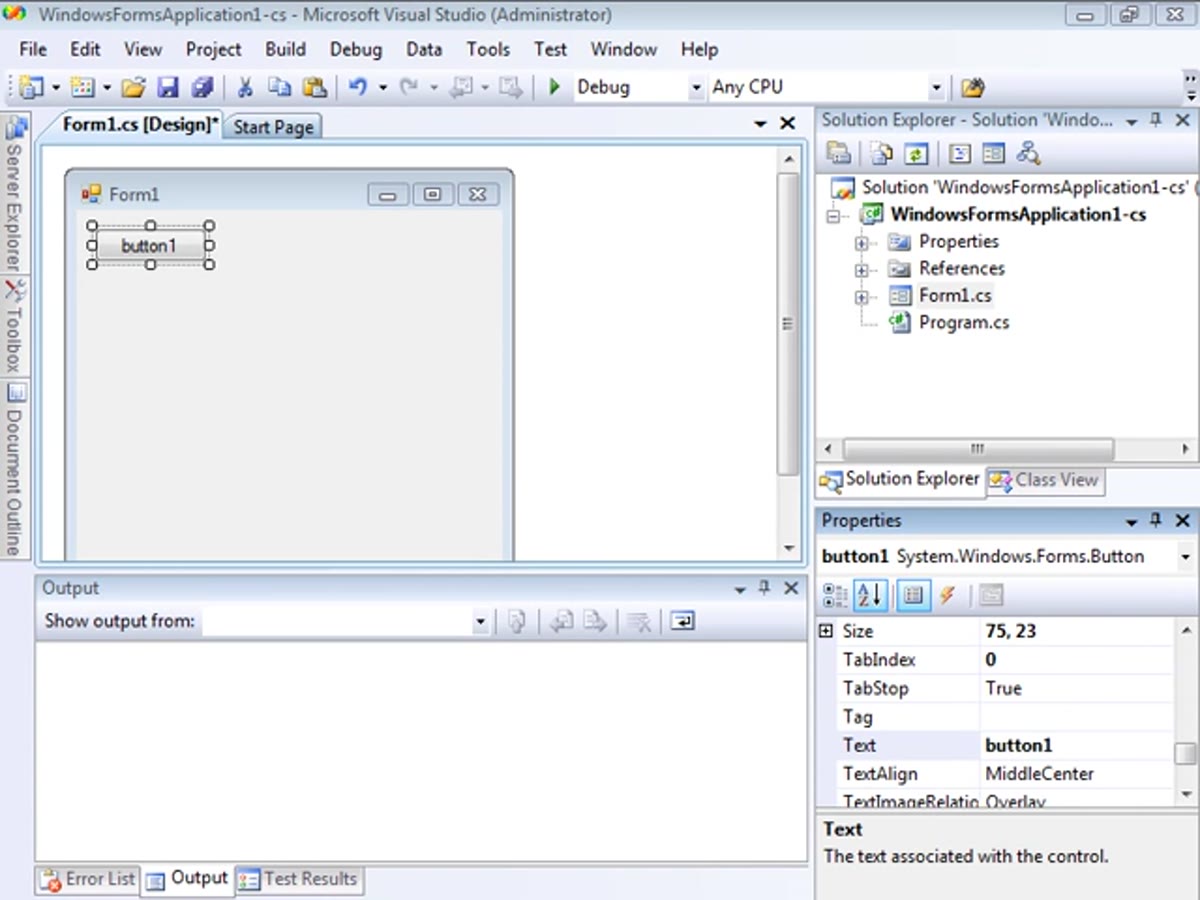
Start with an existing Windows Forms project or create a new one. You need at least one graphical control on your form, a button being the most straightforward starting point. Click directly on the control in the designer view to select it. This sounds obvious, but the selection has to be active before the Properties pane reflects anything useful. If you click somewhere outside the control boundary, you’ll be looking at the form’s own properties instead, which is a quiet way to waste ten minutes.
Visual Studio interface showing a graphical control selected in the designer
Start with an existing Windows Forms project or create a new one. You need at least one graphical control on your form, a button being the most straightforward starting point. Click directly on the control in the designer view to select it. This sounds obvious, but the selection has to be active before the Properties pane reflects anything useful. If you click somewhere outside the control boundary, you’ll be looking at the form’s own properties instead, which is a quiet way to waste ten minutes.
Step 2: Navigate to the Events Panel in the Properties Pane
 Properties pane open with Events icon highlighted at the top
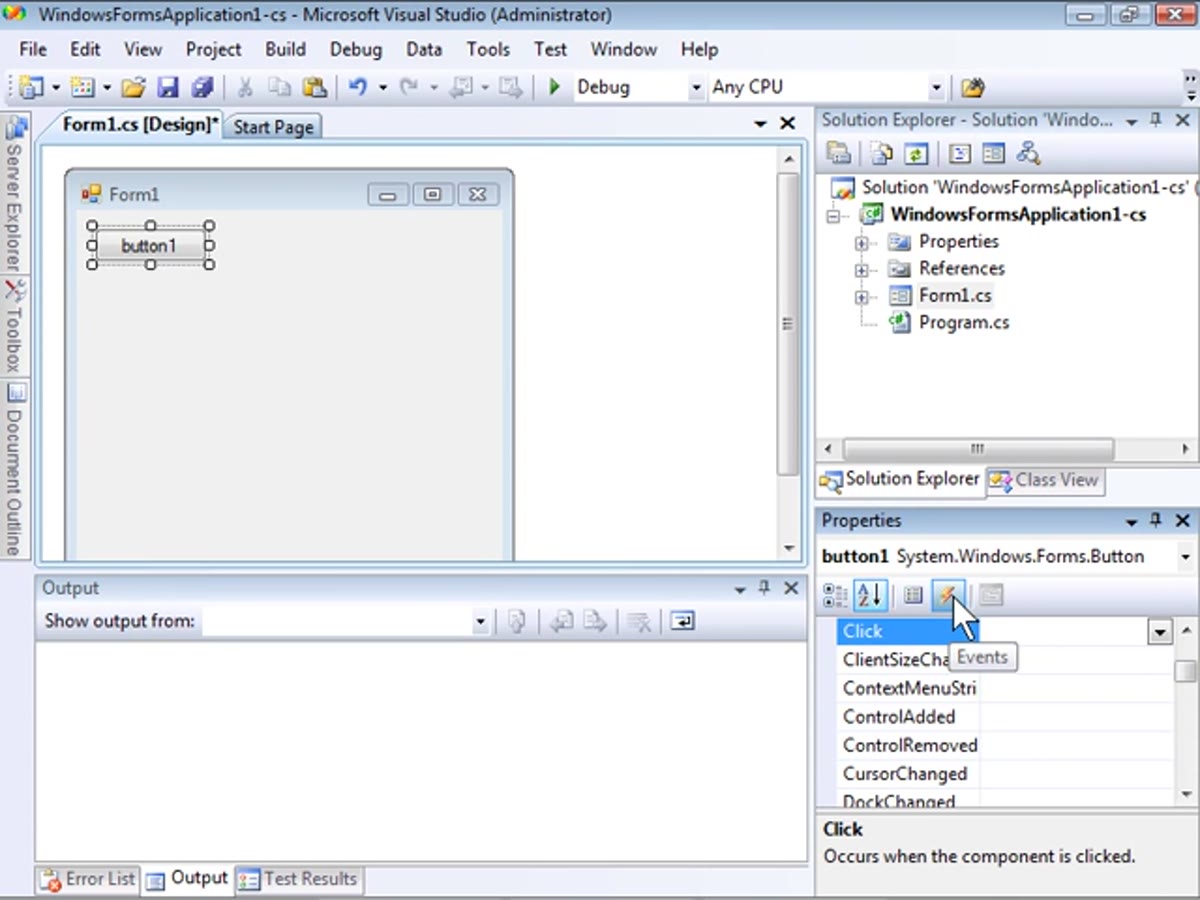
With your control selected, look at the Properties pane, usually docked to the right side of the interface. At the top of that pane, you’ll see two small icons. One looks like a grid of properties. The other, a lightning bolt icon, switches the view to the Events panel. Click the lightning bolt. The pane will repopulate with a list of every event that the selected control is capable of firing. For a button, this includes things like Click, MouseEnter, MouseLeave, and a handful of others you’ll likely never touch but good to know are there.
Properties pane open with Events icon highlighted at the top
With your control selected, look at the Properties pane, usually docked to the right side of the interface. At the top of that pane, you’ll see two small icons. One looks like a grid of properties. The other, a lightning bolt icon, switches the view to the Events panel. Click the lightning bolt. The pane will repopulate with a list of every event that the selected control is capable of firing. For a button, this includes things like Click, MouseEnter, MouseLeave, and a handful of others you’ll likely never touch but good to know are there.
Step 3: Double-Click the Event You Want to Handle
 Events pane with a specific event being double-clicked
Find the event relevant to your use case. For a button that the user presses to trigger an action, Click is your target. Double-click directly on the event name in the pane. Don’t single-click into the text field next to it and try to type a method name manually, not yet. The double-click is the shortcut that makes this whole workflow worth knowing. Visual Studio will immediately switch your view from the designer to the code editor, and it will have written something for you already.
Events pane with a specific event being double-clicked
Find the event relevant to your use case. For a button that the user presses to trigger an action, Click is your target. Double-click directly on the event name in the pane. Don’t single-click into the text field next to it and try to type a method name manually, not yet. The double-click is the shortcut that makes this whole workflow worth knowing. Visual Studio will immediately switch your view from the designer to the code editor, and it will have written something for you already.
Step 4: Review the Auto-Generated Method Header
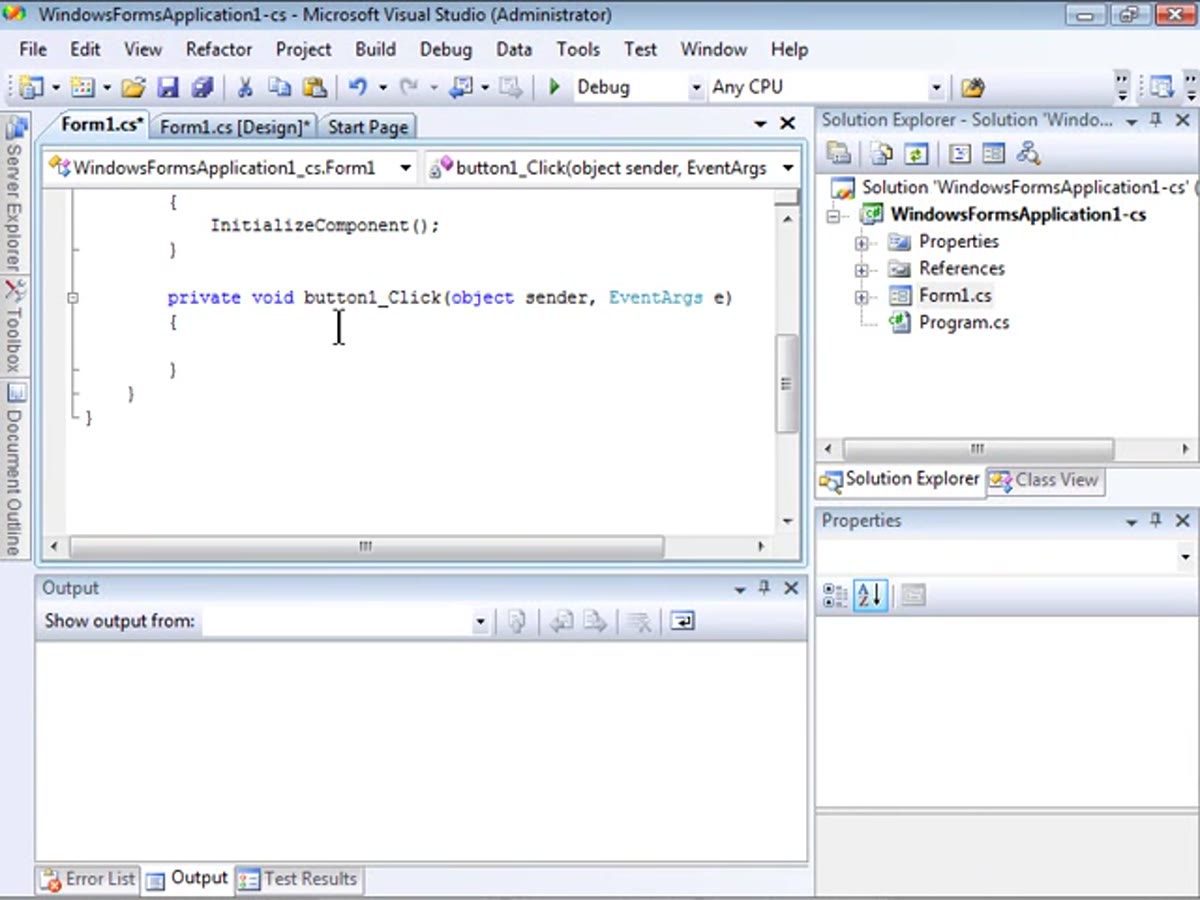 Code editor showing the auto-generated event handler method
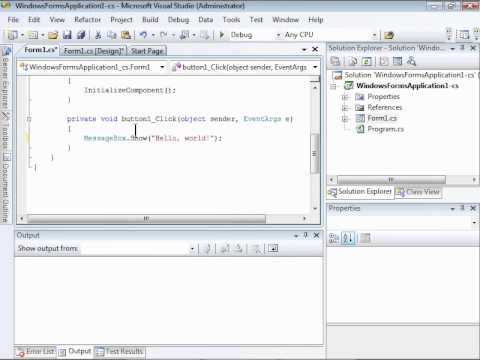
What you’ll see in the code editor is a method stub. Visual Studio has generated the method signature, the correct parameter types, the event sender reference, the event arguments, and the proper naming convention, all without you typing a character of it. In C#, it looks something like a void method named after your control and the event, accepting an object and EventArgs. In Visual Basic, the structure is identical in function, just different in syntax. The cursor will be positioned inside the method body, right where your code needs to go. That placement is intentional. The IDE is telling you exactly where to start.
Code editor showing the auto-generated event handler method
What you’ll see in the code editor is a method stub. Visual Studio has generated the method signature, the correct parameter types, the event sender reference, the event arguments, and the proper naming convention, all without you typing a character of it. In C#, it looks something like a void method named after your control and the event, accepting an object and EventArgs. In Visual Basic, the structure is identical in function, just different in syntax. The cursor will be positioned inside the method body, right where your code needs to go. That placement is intentional. The IDE is telling you exactly where to start.
Step 5: Write Your Logic Inside the Generated Method
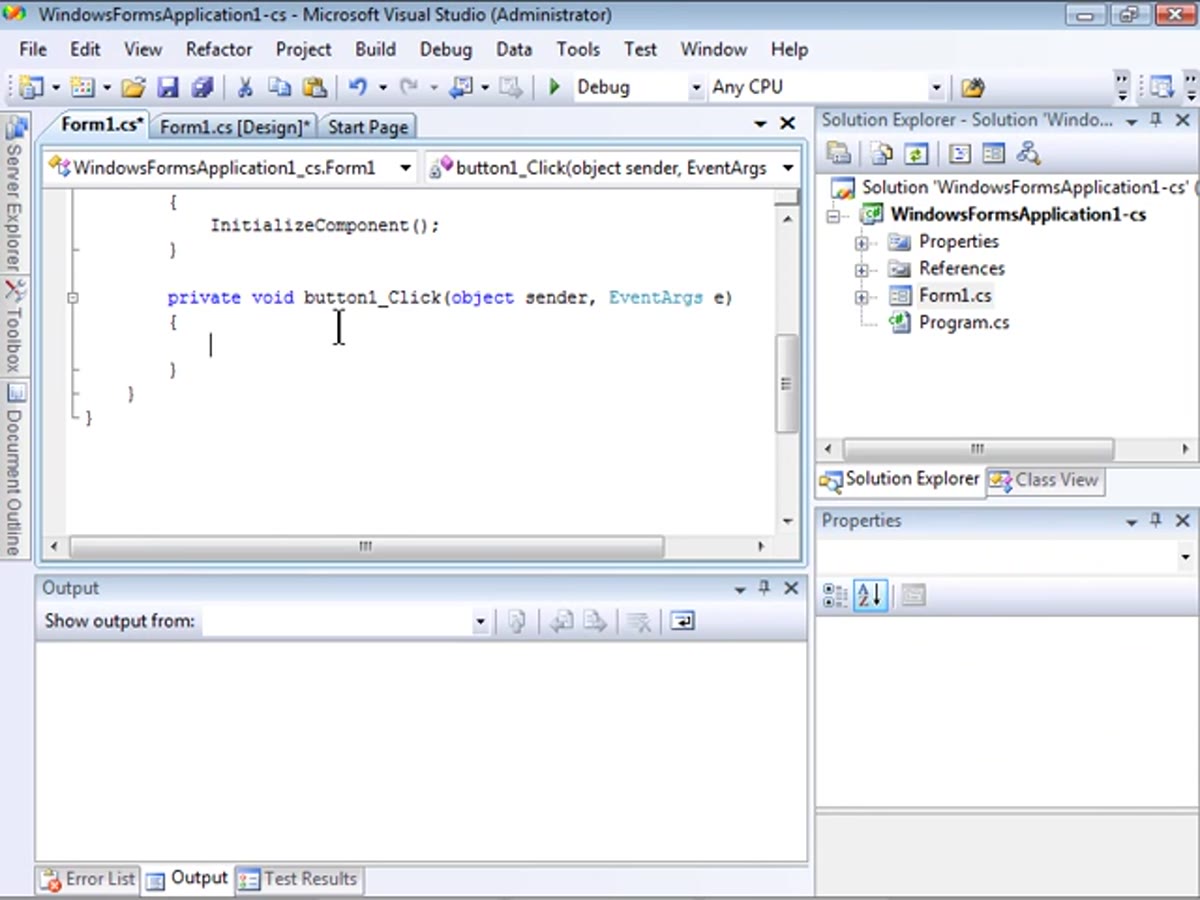 Code editor with custom code added inside the event handler body
This is where you take over. The method header is the recipe card. The ingredients and technique are yours to define. In the tutorial demonstration, a simple message box displaying “Hello, world” is used as the payload. That’s the right call for a walkthrough because it keeps the example honest. The event infrastructure is the lesson, not the complexity of the code inside it. For your own work, this body is where you’d call a function, update a variable, write to a file, trigger a lighting calculation, whatever the tool you’re building actually needs to do.
Code editor with custom code added inside the event handler body
This is where you take over. The method header is the recipe card. The ingredients and technique are yours to define. In the tutorial demonstration, a simple message box displaying “Hello, world” is used as the payload. That’s the right call for a walkthrough because it keeps the example honest. The event infrastructure is the lesson, not the complexity of the code inside it. For your own work, this body is where you’d call a function, update a variable, write to a file, trigger a lighting calculation, whatever the tool you’re building actually needs to do.
Step 6: Confirm the Behavior is Identical in Visual Basic
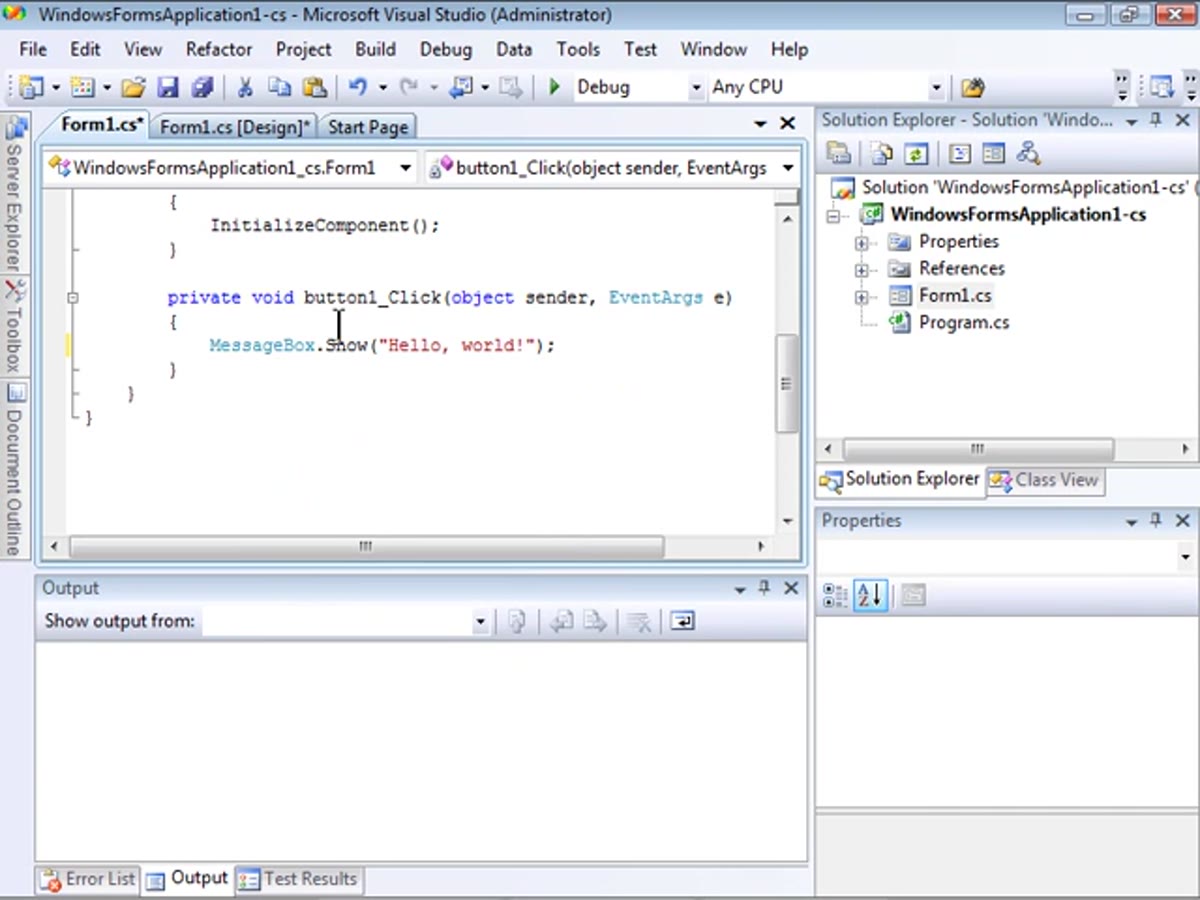 Visual Basic project showing the same event generation workflow
If you work across both C# and VB.NET, or if you’re inheriting a project written in the other language, this is worth confirming directly. The visual workflow in Visual Studio is the same regardless of language. You click the control, open the Events panel, double-click the event, and the IDE generates the correct method header for whichever language the project targets. The syntax in the generated code will differ, but the steps to get there are identical. This matters practically because it means you don’t have to context-switch your process, only the syntax.
Visual Basic project showing the same event generation workflow
If you work across both C# and VB.NET, or if you’re inheriting a project written in the other language, this is worth confirming directly. The visual workflow in Visual Studio is the same regardless of language. You click the control, open the Events panel, double-click the event, and the IDE generates the correct method header for whichever language the project targets. The syntax in the generated code will differ, but the steps to get there are identical. This matters practically because it means you don’t have to context-switch your process, only the syntax.
Step 7: Run the Application and Test the Event
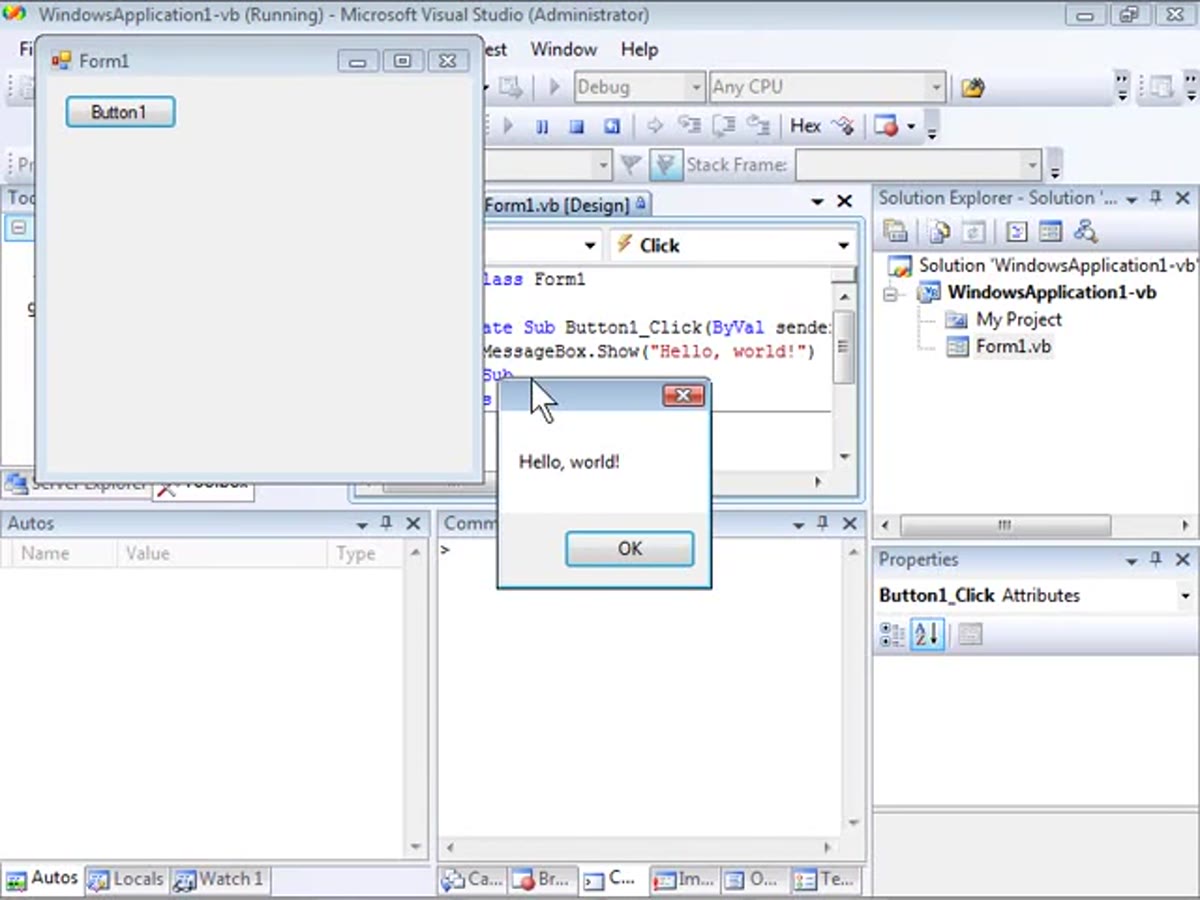 Running application with a button being clicked and a message box appearing
Build and run the project. Click the button in the running application. The message box appears. That confirmation is more important than it sounds because it closes the loop between three separate things: the designer, the Properties pane, and the code editor. All three had to be in agreement for the event to fire correctly. When it works, you’ve verified that Visual Studio wired the event to your method automatically, that your control is connected to the logic you wrote, and that the application compiles cleanly. That’s a reliable foundation to build anything more complex on top of.
Running application with a button being clicked and a message box appearing
Build and run the project. Click the button in the running application. The message box appears. That confirmation is more important than it sounds because it closes the loop between three separate things: the designer, the Properties pane, and the code editor. All three had to be in agreement for the event to fire correctly. When it works, you’ve verified that Visual Studio wired the event to your method automatically, that your control is connected to the logic you wrote, and that the application compiles cleanly. That’s a reliable foundation to build anything more complex on top of.
What I’d Add From My Own Experience
The auto-generated method name that Visual Studio creates follows a convention based on your control’s name property. If you leave your controls with default names like Button1 or TextBox2, your code will fill up with method names that mean nothing three months later. Before you double-click any event to generate a handler, rename the control in the Properties pane first. Give it something descriptive. The method Visual Studio generates will inherit that name, and your code will be readable without a decoder ring. I label every light in my studio with masking tape for exactly this reason. Names matter when you’re trying to reconstruct something quickly.
The single most useful thing this workflow does is remove the friction between an idea and a working button. Once you know that Visual Studio can generate the method structure for you, you stop dreading the event wiring step and start focusing on what the event should actually accomplish. That shift in attention is where good tools get built.
Watch the full tutorial on YouTube to see Tony walk through this live, including the Visual Basic demonstration side by side.
Comments
Leave a Comment