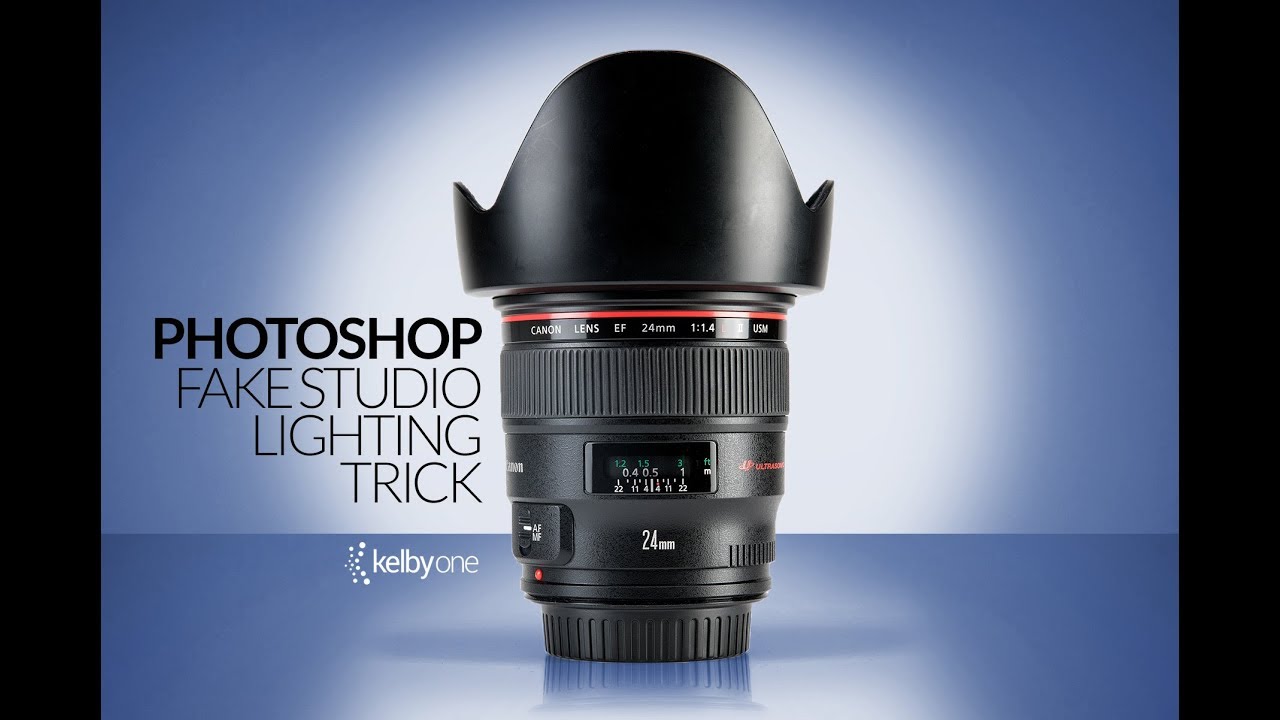
Product photography has a dirty little secret: the background matters as much as the light. I’ve shot on white seamless more times than I can count, and even with three well-placed continuous lights, the final image rarely has that clean, deliberate “studio” feel right out of camera. The background goes flat, the subject looks like it’s sitting on a table rather than floating in controlled light, and you end up spending real time in post trying to manufacture what you thought you built on set.
That’s exactly why I stopped when I saw this technique from Scott Kelby over at KelbyOne. Watch the full tutorial on YouTube. Kelby uses a product photo of a camera lens, shot on white seamless with continuous lights, and transforms it in Photoshop into something that looks like it was lit with a single, gorgeous overhead spot. No additional shooting. No relit setup. Just a methodical sequence of selections, fills, and blurs that I’ve started adapting for my own client work.
What caught my attention wasn’t the trick itself. It was how transferable it is. I keep a lighting journal where I sketch every setup from every shoot, and I’ve started adding Photoshop “lighting diagrams” alongside them. This technique is now in there. Here’s how it works, step by step.
Step 1: Select Your Subject with the Quick Selection Tool
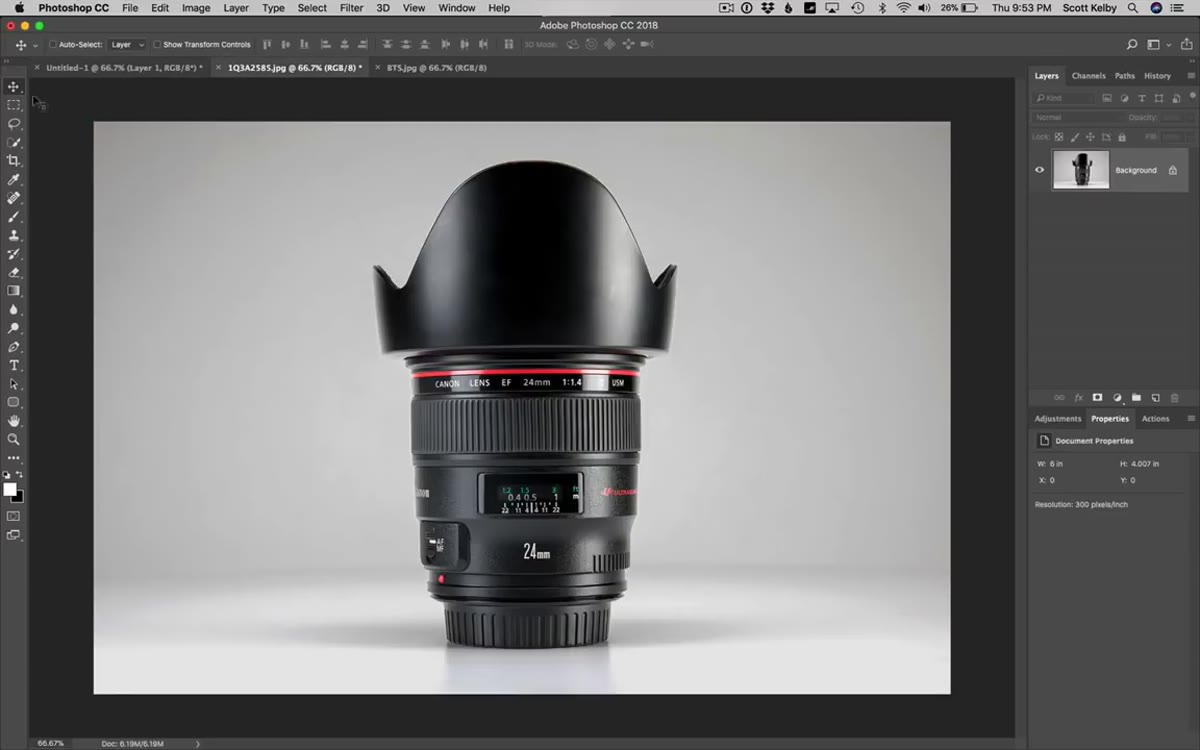 Quick Selection tool painting over the camera lens
Open your product image and grab the Quick Selection tool. Paint over your subject to build a rough selection. The tool earns its name here. Kelby works around a camera lens, painting across the body and edges. Where the tool overshoots, hold Option (Mac) or Alt (Windows) to subtract from the selection. Tighten up problem areas by reducing brush size. You don’t need a surgical cutout here. Clean enough is the goal.
Quick Selection tool painting over the camera lens
Open your product image and grab the Quick Selection tool. Paint over your subject to build a rough selection. The tool earns its name here. Kelby works around a camera lens, painting across the body and edges. Where the tool overshoots, hold Option (Mac) or Alt (Windows) to subtract from the selection. Tighten up problem areas by reducing brush size. You don’t need a surgical cutout here. Clean enough is the goal.
Once the selection is solid, press Command+J (Mac) or Ctrl+J (Windows) to copy the subject onto its own transparent layer. Hide the background layer and confirm you’ve got a clean isolated subject floating on transparency. This layer goes untouched for the rest of the process.
Step 2: Build Your Spotlight on a New Blank Layer
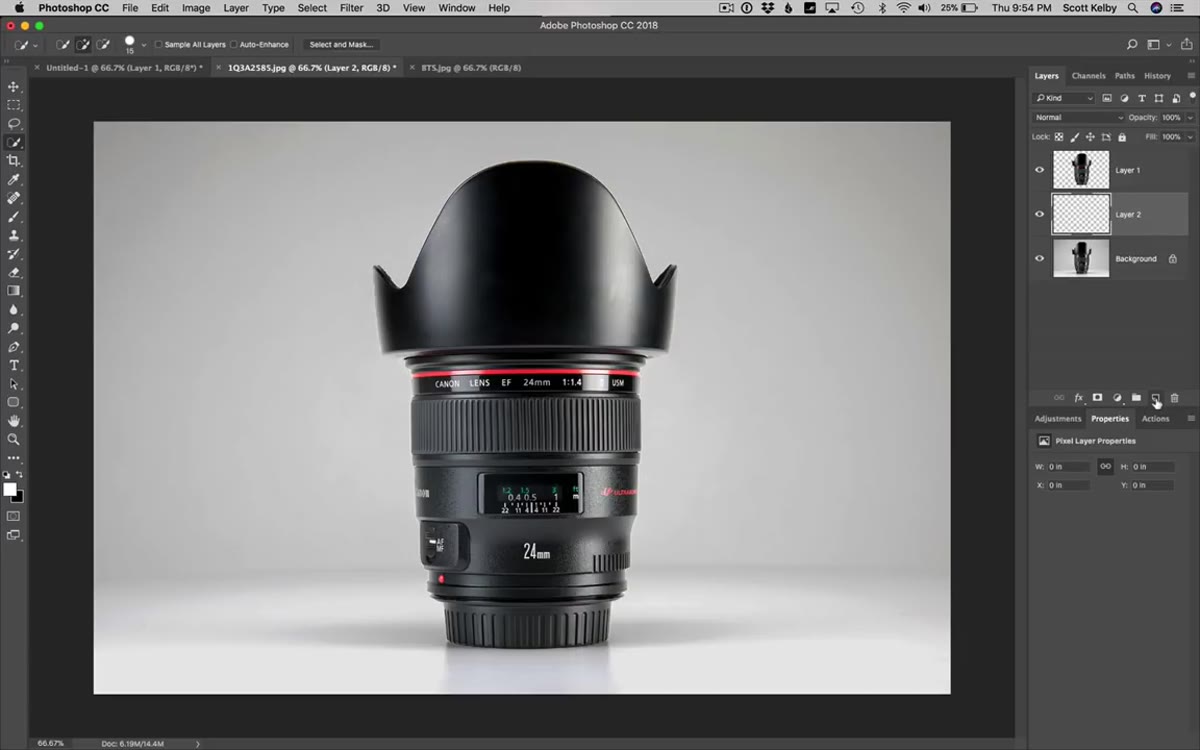 New blank layer created below the subject layer
Create a new blank layer and drag it below your subject layer in the Layers panel. Switch to the Elliptical Marquee tool and draw a large oval or circle roughly centered behind where your subject will sit. Fill that selection with white. You now have a white circle on a dark or transparent background, which is the raw material for a synthetic spotlight.
New blank layer created below the subject layer
Create a new blank layer and drag it below your subject layer in the Layers panel. Switch to the Elliptical Marquee tool and draw a large oval or circle roughly centered behind where your subject will sit. Fill that selection with white. You now have a white circle on a dark or transparent background, which is the raw material for a synthetic spotlight.
This step is where the technique clicks into place conceptually. You’re not painting light, you’re implying it. The circle becomes the hotspot, and the next step does the heavy lifting to make it believable.
Step 3: Blur the Circle into a Soft Glow
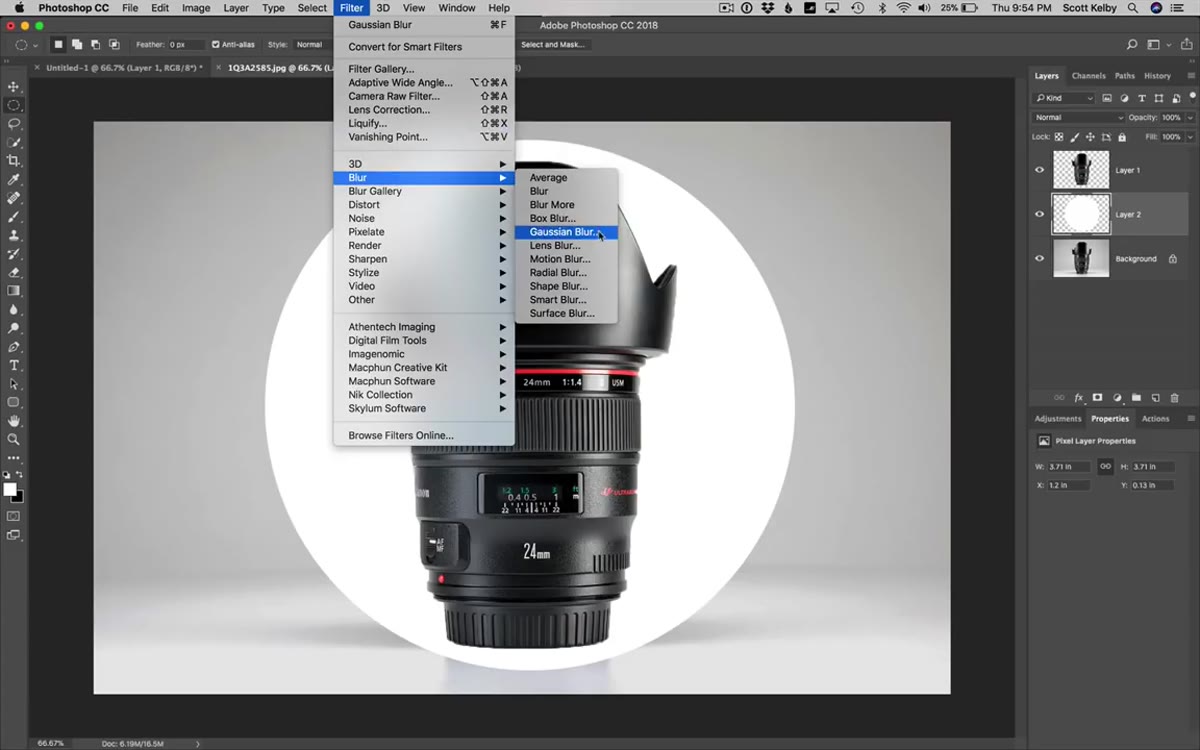 Gaussian Blur dialog with radius value near 70
Go to Filter, then Blur, then Gaussian Blur. Push the radius hard. Kelby lands around 70 pixels, and that’s a reasonable starting point, but your ideal value depends on canvas size and subject scale. You want the edges of that white circle to dissolve into the background so thoroughly that the center looks like a light source and the perimeter fades to nothing. If the edge is still visible as a defined shape, go higher.
Gaussian Blur dialog with radius value near 70
Go to Filter, then Blur, then Gaussian Blur. Push the radius hard. Kelby lands around 70 pixels, and that’s a reasonable starting point, but your ideal value depends on canvas size and subject scale. You want the edges of that white circle to dissolve into the background so thoroughly that the center looks like a light source and the perimeter fades to nothing. If the edge is still visible as a defined shape, go higher.
This is the same principle I use when I’m flagging a light in the studio to create a hard falloff. The math is different but the goal is identical: controlled light with intentional shadow.
Step 4: Flatten the Glow Layer with the Background
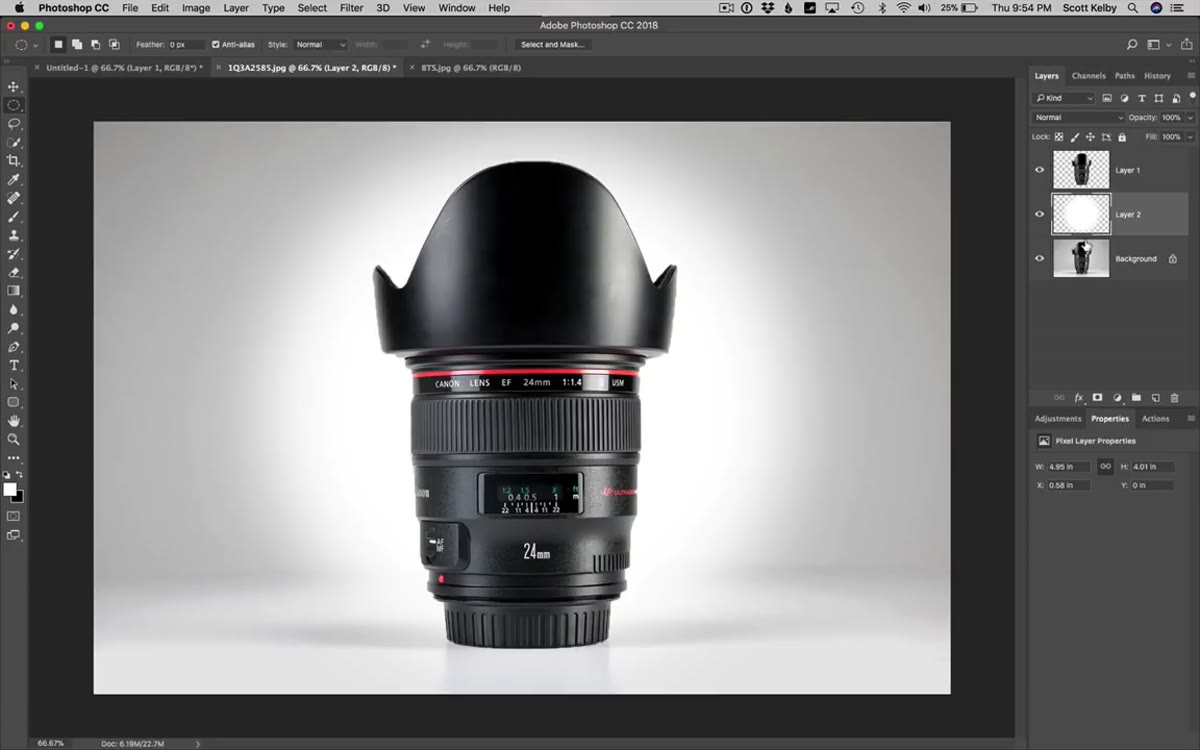 Layers panel showing merge of blur layer with background
With the blurred white circle layer selected, press Command+E (Mac) or Ctrl+E (Windows) to merge it down into the layer beneath it. This combines the spotlight effect with the background, giving you a single unified layer to work from. Check that your subject layer is still isolated above it.
Layers panel showing merge of blur layer with background
With the blurred white circle layer selected, press Command+E (Mac) or Ctrl+E (Windows) to merge it down into the layer beneath it. This combines the spotlight effect with the background, giving you a single unified layer to work from. Check that your subject layer is still isolated above it.
At this point your composition has the spotlight but it’s missing something critical: a surface. The subject looks like it’s floating in front of a gradient rather than sitting on a real table. Step 5 fixes that.
Step 5: Build the Table Surface from the Background
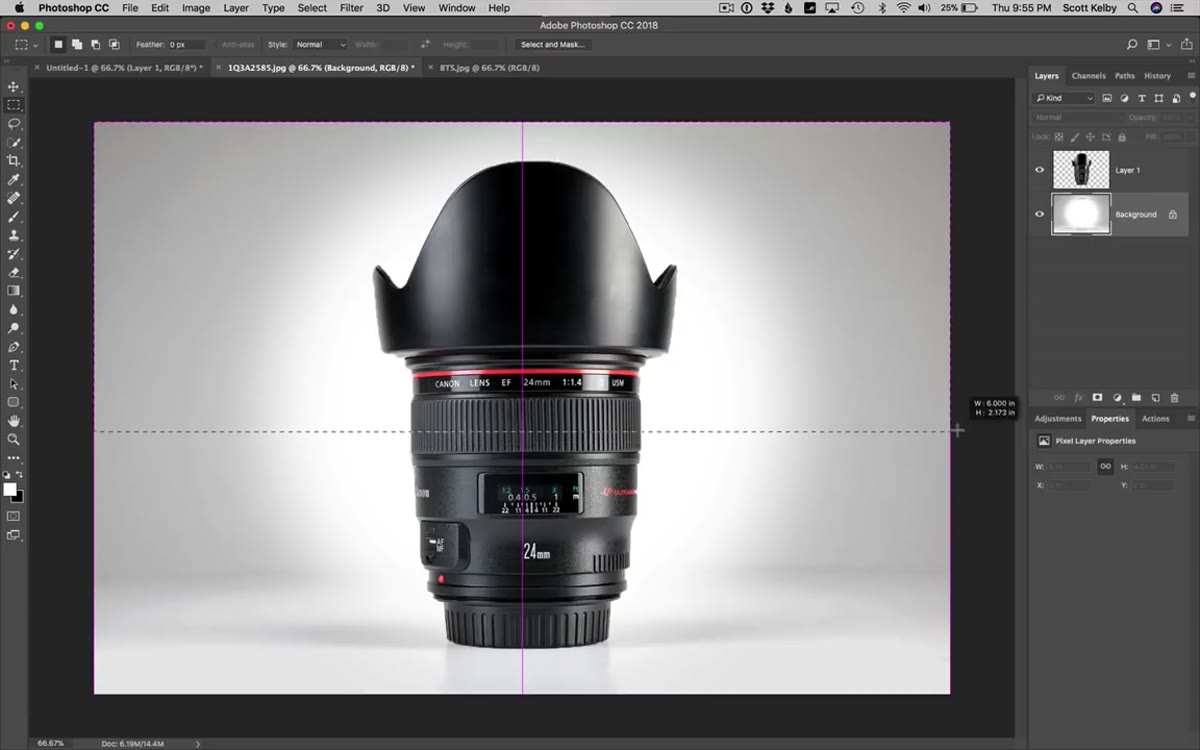 Rectangular marquee selecting top half of background layer
Select the Rectangular Marquee tool and draw a selection covering roughly the top half of the merged background layer. This is an approximation and the exact split depends on where you want your horizon line. Press Command+J to copy just that selected portion onto its own new layer.
Rectangular marquee selecting top half of background layer
Select the Rectangular Marquee tool and draw a selection covering roughly the top half of the merged background layer. This is an approximation and the exact split depends on where you want your horizon line. Press Command+J to copy just that selected portion onto its own new layer.
Now drag that new layer downward on the canvas. When you position it correctly, the bottom of the background and the reflected top create a natural-looking table surface with the spotlight appearing on both planes. It’s a simple translation, but it reads as a physical environment with almost no effort.
Step 6: Merge and Refine the Final Composite
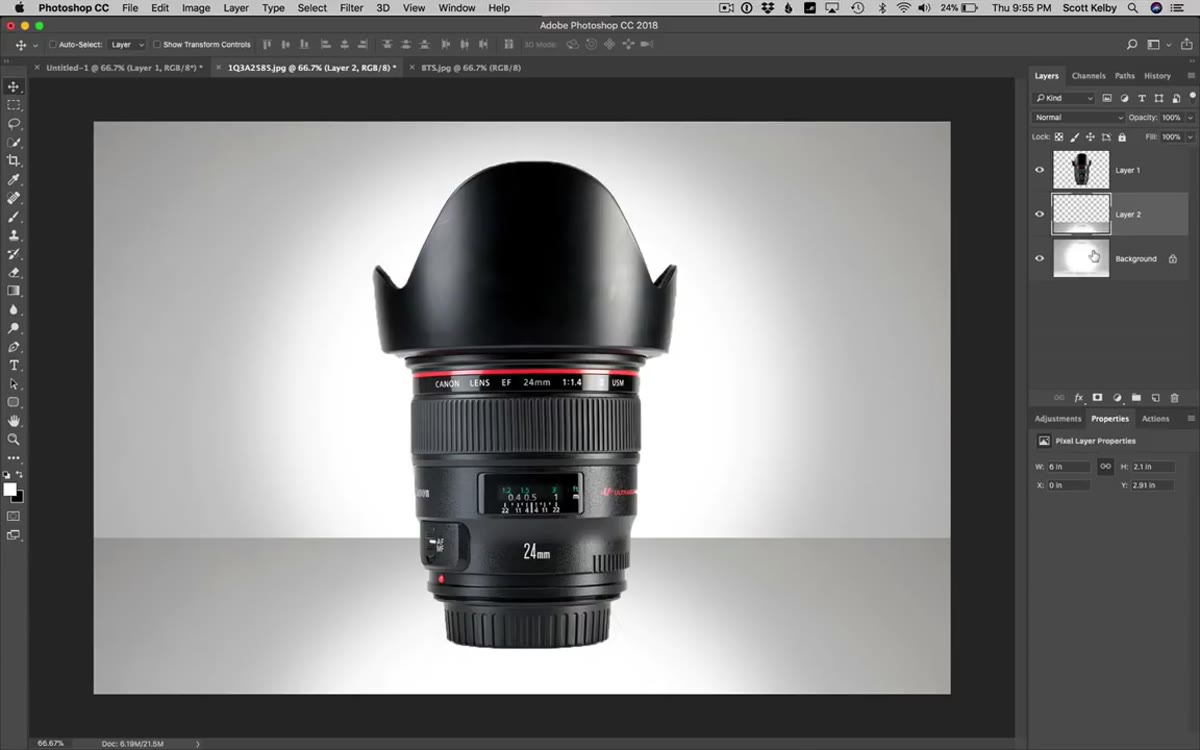 Layers merged, subject layer repositioned above final background
Merge your background and table layers together using Command+E, then bring your subject layer back to the top of the stack and reposition it so it sits naturally on the table surface. At this point you have a product sitting on a reflective-looking surface inside what appears to be a studio spotlight. The final refinement is placement: the subject needs to feel grounded on that surface, not dropped on top of it.
Layers merged, subject layer repositioned above final background
Merge your background and table layers together using Command+E, then bring your subject layer back to the top of the stack and reposition it so it sits naturally on the table surface. At this point you have a product sitting on a reflective-looking surface inside what appears to be a studio spotlight. The final refinement is placement: the subject needs to feel grounded on that surface, not dropped on top of it.
One Thing I’d Add From My Own Kit
Kelby builds this technique around a straight product shot with a relatively neutral subject. In my commercial work, especially with beauty and skincare products, I’ve found one additional step worth adding: a Curves adjustment layer clipped to the background, pulling the shadows darker at the edges. This deepens the vignette and makes the center spotlight feel even more intentional. Think of it as the Photoshop equivalent of adding a fourth light with a snoot pointed straight down.
I also tend to nudge the subject layer’s blending mode to Luminosity at reduced opacity when the product has a lot of specular highlights. It keeps the metals from blowing out against the white glow. Neither change is essential, but both push the result closer to what I’d expect from a real controlled studio setup.
The most important thing Kelby demonstrates here isn’t the specific tool sequence. It’s the underlying idea that studio lighting is a spatial arrangement you can reconstruct in post when you understand what the components actually are: a light source, a surface, and a subject placed within both. Once you see it that way, the Photoshop version stops feeling like a workaround and starts feeling like a legitimate tool.
Watch the full tutorial on YouTube to see Kelby work through the full sequence in real time. His pacing makes the layer logic especially easy to follow.
Comments
Leave a Comment